Download Genymotion Desktop

Illustration showing Genymotion Desktop running on a Macbook Pro.
Stable – 3.11.0

Windows 11 (x86_64)

Home, Pro (recommended), Enterprise

5b59c3d92b6371608aba2b4cda7da840dc5d8971573583c60526e082c26d71af

SHA256

Linux (x86_64)

Ubuntu, Debian, Fedora

8cd727af40b437a50674df6a66a4671599c986ea3f16de63fc21bbb394ca052f

SHA256

macOS (x86_64, arm64)

Tahoe (26), Sequoia (15)

5429306195396fb2a64a53ee3db41e3ef61f4c45fdbfcd74a20604724fbc7895

SHA256

Features / Services
Genymotion Desktop Free
Genymotion Desktop Pro
Services
  Technical Assistance
Android
  Latest Android version
Development / QA
  Advanced Dev Tools
  Root toggle
Demonstration
  Capture (Screenshot, Screen record)
Gaming
  Gamepad
Emulated Features
  Media Injection
  Camera
  GPS
  GPS route
  Network settings
  Android Identifiers
  Biometrics
  SIM card (Baseband simulation)
  Motion Sensors
 Android Controls
  Phone (Call/SMS simulation)
  Google Play Store
  Battery
  Storage Speed

Requirements

CPU

  • Intel x86_64 6th generation
  • AMD Ryzen
  • Apple Silicon SoC (mac M)

Bios (PC)

VT-x or AMD-V/SMV capability must be enabled.

GPU

OpenGL 3.3 or higher capable GPU.
Nvidia or AMD GPU are highly recommended on Windows Systems.

Memory

16GB or more.

Display

1920×1080 (1080p) or higher.

Storage

250MB for Genymotion + at least 1GB per virtual device.

Windows (x86_64)

  • Windows 11
  • VirtualBox (included with Genymotion default installer)

macOS

  • Tahoe (26)
  • Sequoia (15)

Linux (x86_64)

  • Ubuntu 24.04LTS or higher
  • Debian stable 13 or higher
  • Fedora Workstation 40 or higher

Internet

An Internet connection is mandatory at first run. Learn More.

Get Started

Learn how to install and configure Genymotion Desktop, and get started in no time.

Scroll to Top

Select Product Portal

SaaS Platform

Access to our SaaS solution and use virtual machines in the cloud on any web browsers.

Or

Or

Desktop Platform

Access to manage your Genymotion Desktop licenses, your invoices and account information.

How to get a quote for multiple Business Licenses?

  1. You need a Genymotion Desktop account. If you haven’t one yet, you can create it here.
  2. After creation and activation, or if you already have an account, follow this link.
  3. Add the number of desired licenses to your shopping cart and click “Continue to Billing”
  4. Add a shipping address, or select one if you already created one.
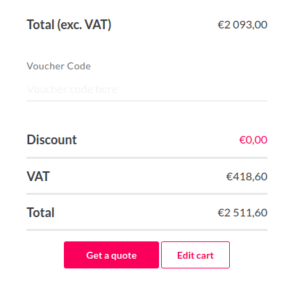
  5.  In the next page, click “Get a quote”:
    Payment details
  6. A quote will be automatically generated in PDF format.

Genymotion Device Image for Cloud providers
- Private Offer -

Genymotion Self-hosted (on-premises)
- Contact Us -

Genymotion SaaS
- Increase Maximum Simultaneous devices -

Genymotion SaaS Enterprise Plan
- Get a Quote -

Genymotion SaaS Premium Plan
- Get a Quote -

Personal Use - Free

Genymotion Desktop for personal use is not suitable for trial or POC: you will not get any assistance and some features will be disabled. If you have already selected “personal use” and wish to get a trial license, please contact our Sales at [email protected].

Technical support is not available with Genymotion Desktop free edition for personal use. For more details, please refer to Genymotion conditions of use (Personal Use).

The following features are not available in personal use mode:

Follow these steps to get Genymotion Desktop and activate personal use mode:

  1. Go to the Download page and get the latest version for your system.
  2. Follow the instructions from Genymotion Desktop quickstart guide to install Genymotion Desktop.
  3. Launch Genymotion and click CREATE to create an account. You should receive an activation email within an hour. If not, make sure to check your spam.
  4. After activating your account, return to Genymotion and log in with your credentials.
  5. Select personal use when prompted.
  6. Read Genymotion Desktop quickstart guide carefully to setup Genymotion for your needs.

Contact Sales
- Premium Plan -

Select a Cloud provider Marketplace